dir (command)
In-game article clicks load inline without leaving the challenge.
dir, short for directory, is a shell command for listing file system contents: files and directories. Arguably, the command provides the same essential functionality as the ls command, but typically the two commands are described as notably separate concepts, possibly since ls is implemented from a codebase that shares more history than many dir implementations.
The command is often implemented as internal in the operating system shell instead of as a separate application as many other commands are.
Variants
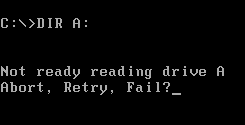
Although syntax, semantics and implementations vary, a dir command with essentially the same functionality is available in the operating systems: CP/M, MP/M, ISIS-II, iRMX 86, CDOS, TRIPOS, DOS, 4690 OS, OS/2, Windows, Singularity, ROM-DOS, ReactOS, GNU, AROS, VMS, RT-11, RSX-11, OS/8, 86-DOS, MS-DOS (in versions 1 and later), and DOSBox.
Some applications also provide a dir command with similar functionality. The typical File Transfer Protocol (FTP) command-line client provides a dir command for listing a remote directory. The numerical computing environments MATLAB and GNU Octave include a dir command.
Generally, Unix-like systems use the ls command for the needs that dir satisfies in other types of systems. Notably, the Unix-like GNU operating system, provides a dir command that is equivalent to ls -C -b; that is, by default files are listed in columns, sorted vertically, and special characters are represented by backslash escape sequences.
Examples


List all files and directories in the working directory.
List text and batch files of the working directory by specifying filename extensions ".txt" or ".bat" with the "*" wildcard character that matches any base file name.
List files and directories in the specified directory and any subdirectories, recursively, in wide format, pausing after each screen of output. The directory name is enclosed in double-quotes, to prevent it from being interpreted is as two separate command-line options because it contains a space.
List any NTFS junction points:
See also
Further reading
- Wolverton, Van (1990). . Microsoft Press. ISBN 978-1556152894.
- Kathy Ivens; Brian Proffit (1993). OS/2 Inside & Out. Osborne McGraw-Hill. ISBN 978-0078818714.
- Frisch, Æleen (2001). Windows 2000 Commands Pocket Reference. O'Reilly. ISBN 978-0-596-00148-3.